Charts View Manager
With the Charts View Manager  , available in the Charts View toolbar, you can manage the arrangement and visibility of your charts in the Charts View. You can open multiple Charts View Managers at the same time, each manager is connected to the Charts View from where it was opened. You can see the name of the connected Charts View in title bar of the Charts View Manager form.
Layout
Under Layout you find all the options to change the arrangement of the charts in your view.
Auto Layout If checked, the Charts View Manager automatically places all the active charts (checked in the 'Charts' table) in the Charts View. The size of all the charts is uniform and the number of columns and rows is approximately equal. When you uncheck the 'Auto Layout' checkbox, the following options are enabled:
Arrangement Select an option and the Charts View Manager determines the number of columns or rows needed to display your charts. In these arrangement modes, a vertical or horizontal scroll bar is added to your view, if the view is maximized.
- Row priority mode (left button)
 The charts are placed in rows following the order in the 'Charts' table. The number of charts in each row is controlled by the 'Columns' setting.
 - Column priority mode (right button)
 The charts are placed in columns following the order in the 'Charts' table. The number of charts in each column is controlled by the 'Rows' setting.
Columns You can select the number of columns from the drop-down list when you have selected 'Row priority mode'. This field is read-only when you have selected 'Column priority mode'.
Rows You can select the number of rows from the drop-down list when you have selected 'Column priority mode'. This field is read-only when you have selected 'Row priority mode'.
Charts
Under Charts, you find the options for chart visibility and ordering. You can show or hide your charts by using the checkboxes in the 'Charts' table. Use the checkbox at the top of the table to show or hide all your charts. To change the order of the charts in the view, click on a chart in the table. The row is highlighted in blue. Use the up or down arrow buttons to reorder your chart, multiselect is also possible.

|
Moves the selected chart one row up in the table. The order in the table determines the order your chart is drawn in the Charts View. |

|
Moves the selected chart one row down in the table. The order in the table determines the order your chart is drawn in the Charts View. |
After making changes on the Charts View Manager, click Apply to update the Charts View and keep the Charts View Manager open, or click OK to update the Charts View and close the Charts View Manager.
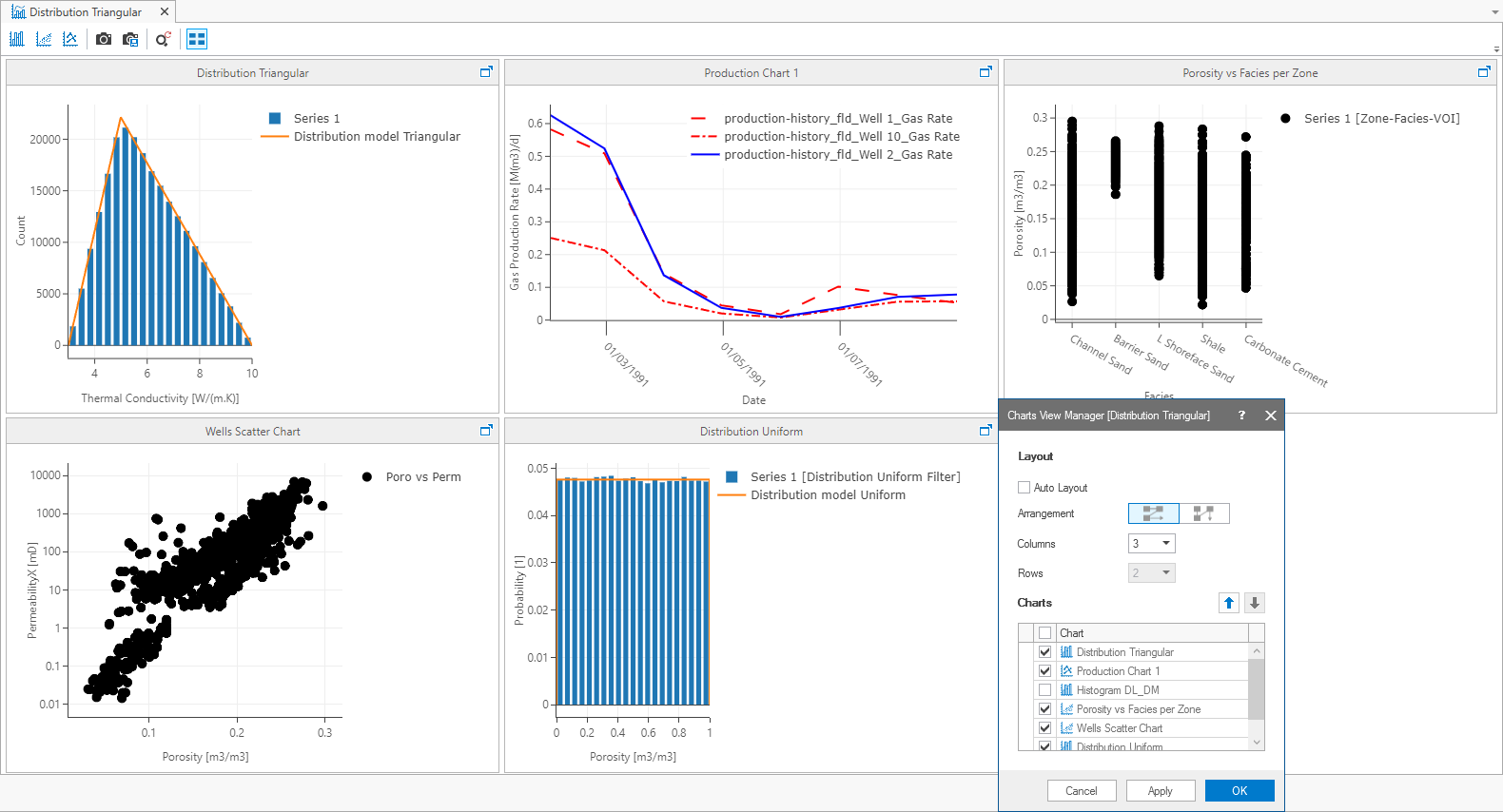
A Charts View in Row priority mode. click to enlarge
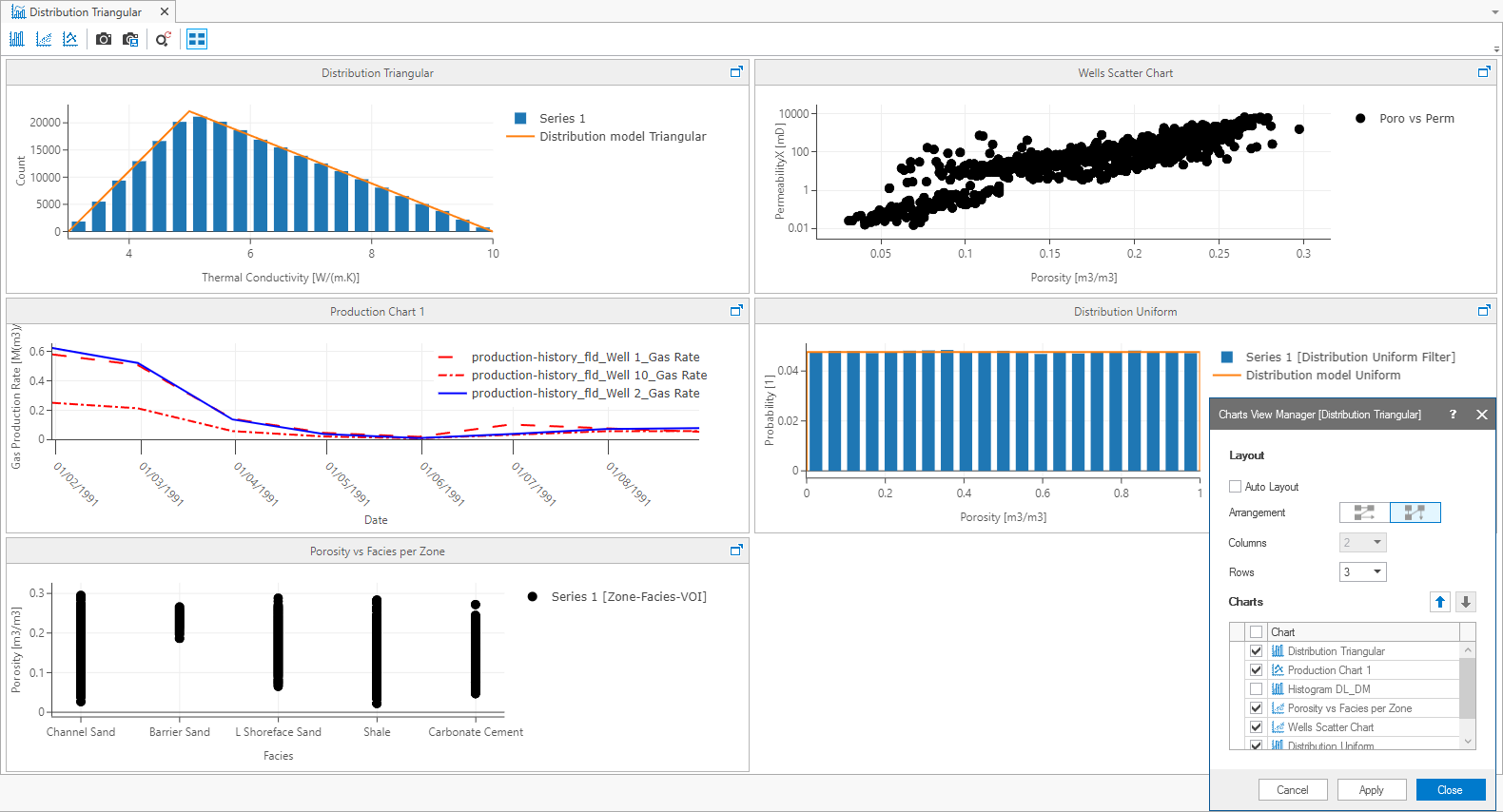
A Charts View in Column priority mode. click to enlarge